How to test a used computer monitor with your own laptop
Quick answer
Connect a used monitor to your own computer with a known-good cable, select its native resolution and inspect solid colours, text and motion. Test the exact inputs, refresh rate and USB-C charging you need. Check the stand and mounting hardware, then compare the complete setup cost. A photograph of a desktop proves far less than a live panel and connection test.
Write the connection requirement before the shopping list
Start with your computer and your work. Record the resolution, refresh rate, input connector and screen size you want. If you need one cable for a laptop, add the laptop’s charging requirement and the peripherals the monitor must connect. “USB-C,” “gaming” and “4K” are not complete compatibility specifications.
Get the full model number from the rear label. Manufacturers often sell near-identical names with different panels, hubs or stands. Find the exact manual and check which input supports the mode you want. An adapter may carry a picture but restrict the available resolution or refresh rate; the seller’s desktop is not evidence that your laptop and dock will behave the same way.
Make one row for each setup you need. A work laptop on a dock and a games console connected directly are two separate requirements. Record host → dock/adapter → cable → monitor input → selected resolution and refresh rate, then add charging and USB peripherals where relevant. This is particularly useful if a seller demonstrates the right picture through a different port from the one you need.
Suppose the screen can display your preferred high-refresh mode through one supported input, but your intended adapter provides only a lower mode. The panel may be working correctly while the proposed setup still fails your requirement. Price a verified alternative connection before negotiating; do not treat an adapter-shaped object as proof the limitation is solved.
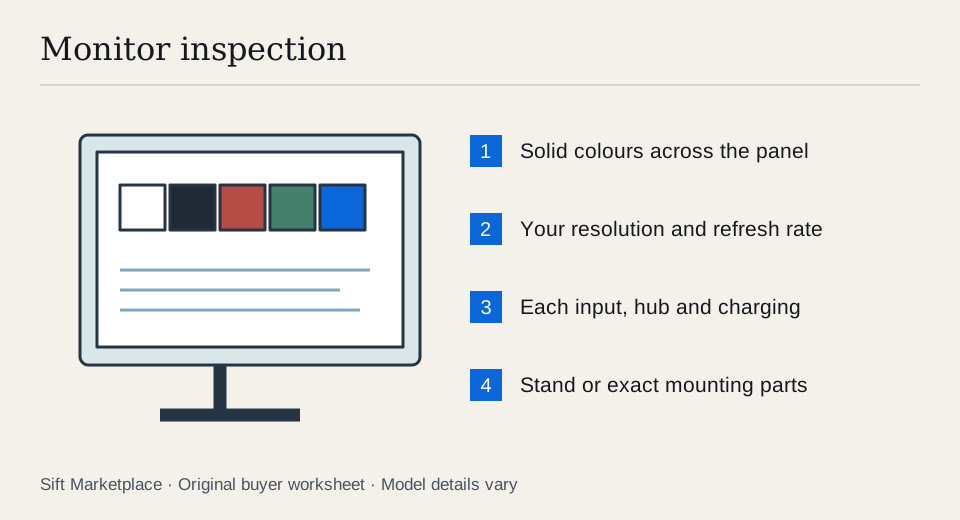
Bring your laptop, charger, a known-good video cable and any dock you actually plan to use. Prepare local full-screen colour images, a text document and a familiar video. A browser-based test is convenient, but stored files make the inspection less dependent on the seller’s internet connection.
 Enlarge diagram
Inspect the panel in a useful order
- Look with the screen off. Use ordinary room light at an angle to see scratches, pressure marks and cracks. Do not press the panel or try to rub out a suspected pixel fault.
- Start the monitor from cold. Watch for a slow start, intermittent image, unusual sounds or controls that do not respond. Leave it running while you inspect the remaining functions.
- Select its native resolution. Check the operating system’s actual selected mode rather than relying on an advertisement or the monitor’s name.
- Show solid colours. Scan white, black, red, green and blue for dots, vertical lines, bright patches and retained shapes. Compare what you can see from your normal seating position.
- Read small text and move a window. Inspect corners as well as the centre. Then play familiar motion at the refresh rate you intend to use.
- Recheck after it has warmed up. A fault that appears only after a few minutes matters just as much as a fault at startup.
Dell’s diagnostic guidance describes built-in self-tests that help distinguish display hardware faults from the computer or video connection. Its generation-specific guidance also warns that button arrangements differ. Use the model manual; a generic button sequence is not a universal test.
A dark photograph may exaggerate uneven lighting, and a bright room may conceal it. Judge the panel in conditions close to where you will work. If colour-critical editing is your purpose, a casual viewing test is not a substitute for measurement with suitable calibration equipment.
Test the ports as separate features
Switch to every input you need. Check for loose sockets by gently reconnecting the cable normally, without forcing or levering it. An HDMI port working does not clear an untested DisplayPort or USB-C input.
For a hub monitor, connect a spare keyboard or mouse and verify data works alongside video. If charging is part of the deal, confirm the computer recognises external power and observe it during normal work. A charging icon alone does not establish that the monitor can sustain your laptop’s heaviest workload. Match the published power rating and cable capabilities first.
| Claim | Evidence to ask for or demonstrate |
|---|---|
| High refresh rate | That mode selected through your intended input |
| USB-C one-cable setup | Video, peripheral data and suitable charging together |
| Speakers included | Playback through the monitor’s speakers, not the laptop |
| Height-adjustable stand | Lift, swivel and tilt holding their positions |
| VESA compatible | Correct hole pattern, screws and any required adapter |
| Perfect screen | Solid-colour inspection without visible defects |
Decide what an imperfect monitor is worth to you
Count dead or stuck pixels and record their positions. A small corner defect may be tolerable for a secondary information screen and unacceptable for design work. Do not assume a manufacturer’s new-product pixel policy applies to your private purchase.
An OLED panel with persistent interface outlines deserves particular care: use several neutral images and a normal document rather than only a colourful demo. Avoid running maintenance cycles repeatedly during pickup in an attempt to prove a cure. Follow the manual and price only the condition you can observe.
| Observed result | Decision implication |
|---|---|
| One stable corner pixel defect | Decide against your actual work and viewing distance; document it if accepted |
| Lines or patches also visible in the monitor’s own test | Seek an assessed repair or pass; a new laptop cable is not a demonstrated remedy |
| Fault only on one source/connection | Isolate the source, cable and input before assigning blame |
| Repeated blackouts after warming up | Keep the problem unresolved even if startup looked clean |
| Persistent interface outline | Evaluate the visible condition; do not buy on a promised future cure |
For office text, comfortable scaling, sharp text and a reliable hub may matter most. For gaming, demonstrate the selected mode and your own experience of motion. For colour work, require the measurement and calibration evidence your job needs. A single “perfect screen” label cannot substitute for these different acceptance standards.
For an illustrative cost comparison, a $140 monitor needing a $45 stand and $20 cable reaches $205 before collection. A $190 complete monitor may be the better purchase. These numbers are example inputs; use actual compatible-part quotes in the comparison worksheet.
Get it home without damaging the panel
Check how the stand releases and whether a suitable box is included. Protect the screen from pressure and secure the monitor so it cannot slide. Do not stack other purchases against the display. A monitor arm needs its own capacity and mounting check; the screen’s diagonal alone does not establish compatibility.
Search by exact model alongside broader terms, since some sellers omit specifications. Sift, a free Facebook Marketplace filter and scam checker that also works on Kijiji, supports required and excluded listing words on Chrome on a computer. Use filters to keep the shortlist manageable and recorded price history to follow candidates while you arrange a powered test.
Questions people ask
How do I check a used monitor for dead pixels?
Display full-screen white, black, red, green and blue images, looking across the entire panel at a normal viewing distance and then closely. Use the monitor’s own diagnostic mode if available to help separate panel faults from computer or cable faults.
Does every USB-C monitor charge a laptop?
No. Verify the exact port’s video and power-delivery capabilities in the model manual, the laptop’s requirements and the cable specification. Test video, charging and the USB hub together with your own laptop.
Is image retention always permanent burn-in?
A brief inspection cannot reliably establish whether a persistent image will clear. If a visible outline remains during solid-colour checks, do not pay a clean-panel price on a promise that it will disappear later.