Buying a used game controller
Quick answer
Match the controller to your exact platform, inspect it, test neutral and full-range inputs, and demonstrate the features you need in a real game.
A controller can pair successfully and still be the wrong purchase. The console generation, computer operating system, connection mode and game can change which features work. Start with the platform you own and the functions you need, then judge the particular controller.
Confirm the model and connection path
Ask for clear front, rear-label and connector photographs. Identify the exact revision and whether it is a standard, premium, adaptive or third-party model. List required parts: receiver, charging cable or dock, battery cover, removable sticks, rear paddles and any adapters. A box bearing the right name does not prove the contents match.
Check official support for your console or computer. Sony’s DualSense support separates setup, charging, pairing and supported-device guidance. Use the relevant instructions for the specific controller; do not assume that a feature demonstrated on one platform carries over to another connection or game.
Write your intended path as “controller → wired or wireless connection → receiver if required → exact device → game”. Bring the host or arrange a matching demonstration. If a seller can show only a different console, mark your path unverified rather than treating pairing as universal compatibility.
 Enlarge diagram
Look for wear that changes the test
Check stick caps, trigger edges, seams, screws, ports and the battery compartment when it is designed for user access. Ask about spills, drops, drifting sticks, replaced parts and previous repairs. A new shell can hide old internal wear; an honest repair can also be perfectly usable. What matters is what was changed and whether the resulting unit works.
Look for corrosion in accessible battery contacts without scraping them. Do not insert damaged batteries, force a cable, open the shell or accept a swollen battery as ordinary age. Check that removable parts lock in their intended positions. Compare both sides of the controller for unusual resistance or loose movement, but avoid bending parts to provoke a failure.
For premium models, count every included accessory individually. Missing paddles may not matter to you. Missing proprietary stick tops or a required receiver may change the purchase completely.
Test neutral, movement and repetition
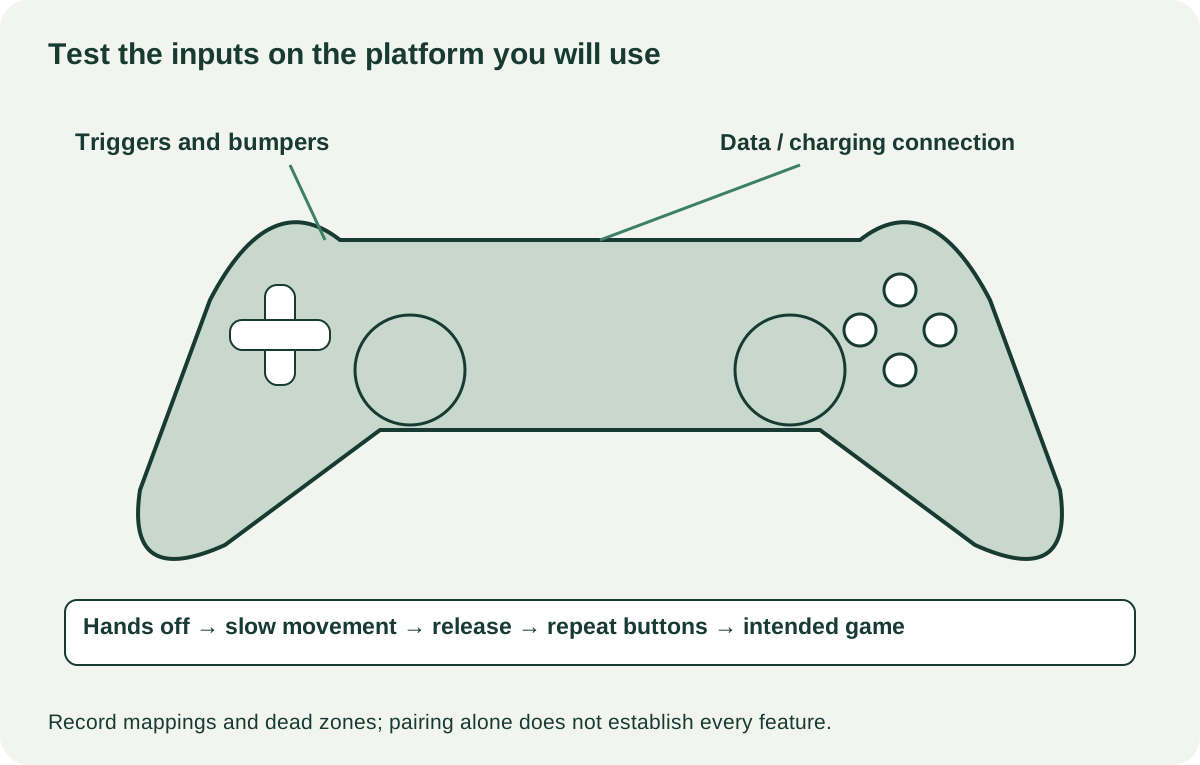
Use a supported input viewer or platform test where available, followed by a game. Begin with hands off the sticks and triggers. Observe whether inputs appear while untouched. Move each stick slowly around its range and release it from several directions. Press each stick button separately. Check the directional pad both as individual directions and ordinary diagonal movement.
Press every button repeatedly at normal pressure. Slowly squeeze each analogue trigger, then try the way you use it in a game. Check bumpers, menu buttons, touchpad, motion, rear inputs and vibration when supported. A device without those features has no reason to demonstrate them; a listing promising them does.
Record any remapping, trigger-stop position, sensitivity and dead-zone settings. A game ignoring a small input does not prove the stick itself is centred. Conversely, a tiny displayed numerical fluctuation is not by itself a complete diagnosis. The important result is whether the controller behaves reliably under the settings and games you intend to use.
| Observation | Useful next step |
|---|---|
| Character moves with hands off | Check mappings and normal settings; repeat in another supported input view |
| Button misses ordinary presses | Reproduce it without squeezing harder; treat persistent misses as unresolved |
| Wireless drops but wired works | Test the intended receiver and supported setup; do not guess which part failed |
| A feature works on the console but not PC | Verify official platform/game support before calling it a defect |
| Stick feels gritty or does not return | Stop treating a cosmetic discount as enough; obtain an assessed repair scope |
Verify power and the accessories you will use
Test wired data operation with a suitable cable, not merely the charging indicator. Pair wirelessly and play for a reasonable short session if that is your intended mode. Move within a normal room distance without creating an artificial interference test. Check audio through the controller only if your platform supports it and you need it.
A brief rechargeable-battery demonstration establishes that it operated during that session. It does not establish full capacity. Record charge status, duration and whether the charging connector loses contact during ordinary handling. For a removable-battery model, include suitable batteries or a compatible charging kit in your ownership cost instead of assuming the seller’s accessories are included.
Price an identified omission, not an unknown repair
A hypothetical $35 controller needing a $25 proprietary receiver and $10 cable costs $70. A $55 compatible controller already complete may be the better option. A drifting $25 unit is a different proposition: unless you have a real repair quote and want a repair project, subtracting an imagined $5 part does not make it equivalent to a working controller.
Ask the seller: “Can we test every input on this platform, using ordinary settings, and confirm which receiver, cable, paddles and battery parts are included?” For a collectible edition, also ask about replacement shells and cosmetic alterations; playability and originality are separate claims.
Buy after the intended connection and inputs work reliably. Negotiate a verified accessory omission you are willing to solve. Pass on repeat failures, unsafe battery condition, incompatible platform support or an unavailable demonstration that is essential to your purchase.