Buying a used handheld gaming PC
Quick answer
Choose for your actual games and comfort, test every control and a normal play session, then complete the seller’s reset and your own setup before payment.
A handheld gaming PC is a small computer with a controller attached. Its operating system, controls, storage, display and battery all have to suit you. A video of a demanding game running for thirty seconds does not answer whether your own games work, whether the grips are comfortable, or whether the device will remain stable through a normal session.
Write a short game and use record
List three games you actually intend to play, their stores or launchers, whether you need online multiplayer, and whether the handheld will be used away from a charger. Check current compatibility with the exact operating system and game version before making the trip. An installed library belongs to the seller’s account; do not include those games in the value of the hardware.
Record the full model, processor variant, screen type and storage capacity. Similar names can cover different hardware. Compare the label with system information and ask whether storage, sticks, screen, shell or cooling parts have been replaced. A larger advertised drive is not evidence that an upgrade was fitted well. Ask for the original parts, service record and any remaining issue.
| Your requirement | Evidence to arrange |
|---|---|
| A particular online game | Current support on the intended operating system and a permitted demonstration |
| Travel use | A normal unplugged session with brightness and power mode recorded |
| Television play | Your planned dock, charger, display and controller path |
| A small case or bag | Actual dimensions, charger space and protection for sticks |
| Comfortable long sessions | Your own grip, trigger reach and ordinary button use |
 Enlarge diagram
Inspect before launching a game
Look at the display under ordinary light, then with plain light and dark images. Inspect shell seams, screws, grip edges, vents, ports and any removable-controller attachment. Damage around a charging port matters even if the device starts from its remaining battery. Check the supplied charger’s identity and supported requirements in the manufacturer’s documentation; a connector fitting is not enough.
Do not open the device at a meetup or run extreme stress settings. A swollen or separating case, burning smell, damaged power supply, liquid evidence or intermittent charging deserves a stop. Cosmetic scuffs are a different category from an unresolved power or structural problem.
Hold it in your normal playing position. Can you reach the rear buttons without accidental presses? Does the weight make you rest it awkwardly? Check whether your glasses and preferred text size suit the display. These are reasons to choose another model even when the machine works correctly.
Test controls, then an ordinary workload
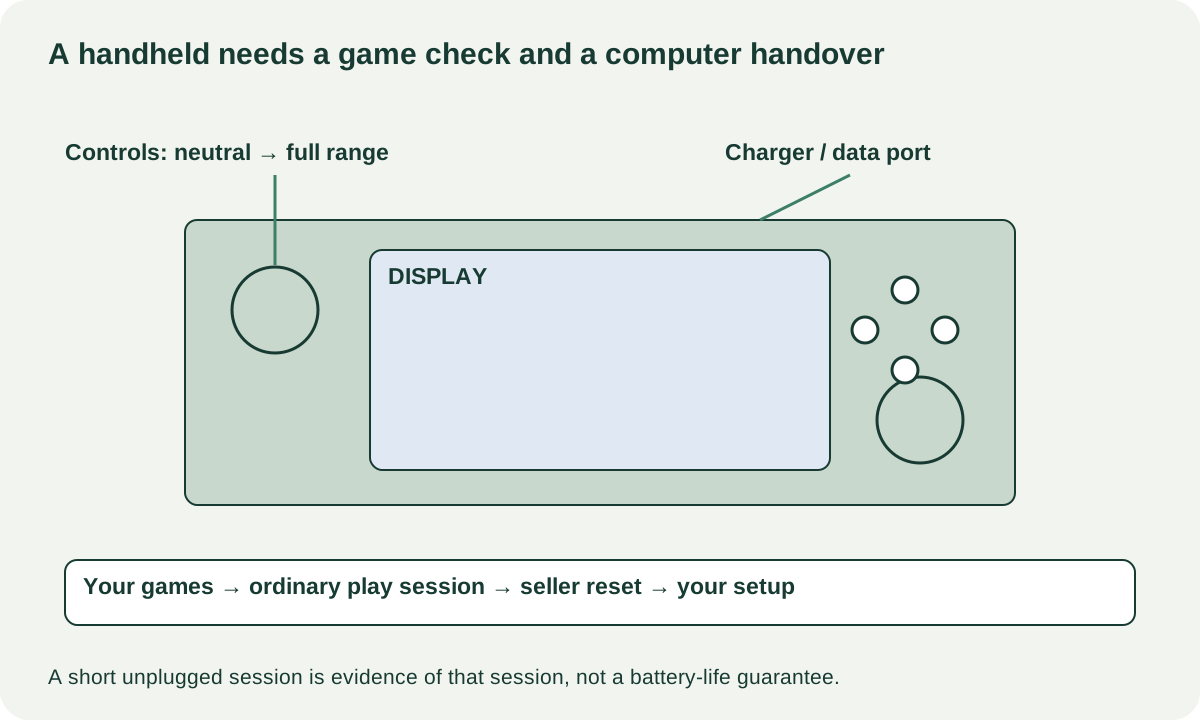
Start with the device’s supported input test where available. Valve documents a controller-input test for Steam Deck in its basic use and troubleshooting guide. Check each stick’s movement and return, directional inputs, face buttons, triggers, bumpers, rear buttons, touch controls and trackpads that the model provides. A remap or a large dead-zone setting can affect what you see, so record the settings rather than declaring a stick healthy from one game.
Next use a game appropriate to the device at ordinary supported settings. Note power mode, resolution, frame limit, brightness and whether it is plugged in. Watch for repeated freezes, abrupt shutdowns, display artefacts, unwanted inputs or charging disconnects. A loud fan under load is an observation to compare with the model and conditions, not a diagnosis of a failed component.
Test speakers and headphones, wireless connection, sleep and wake, and the ports you will actually use. If you need external display output, demonstrate that path separately. A game on the internal screen does not establish dock compatibility.
An unplugged session can expose a sudden battery drop or shutdown. It cannot promise all-day runtime or establish remaining battery life. Record starting and ending charge, elapsed time and workload; do not extrapolate a few idle minutes into a precise gaming-hours claim.
Treat reset and setup as a separate acceptance stage
Agree on the sequence before meeting: hardware demonstration, seller backup and account removal, manufacturer-supported reset, buyer setup, final inspection and payment. Allow time and suitable internet access. The seller should enter their own credentials privately; you do not need their password or a copy of their account.
Valve distinguishes factory reset from recovery options in its SteamOS recovery instructions. Use the correct instructions for the actual device and operating system. A seller’s desktop being accessible is not equivalent to a clean handover. If a device presents an unexplained organisation requirement, ownership restriction or account obstacle, stop until the rightful owner resolves it. Do not accept a promise that an unknown workaround will fix it later.
Compare the playable kit
Include charger, suitable case, genuinely needed storage, dock and any assessed service. Avoid adding accessories just because a listing bundles them: a dock you will not use adds no practical benefit.
For a hypothetical comparison, a $350 handheld needing a $55 compatible charger, $30 case and $20 trip reaches $455 before uncertain repair. A $430 unit with those parts and a $10 trip totals $440. These are arithmetic examples, not current prices. The cheaper complete machine is still only a candidate if it passes your games, controls and handover requirements.
Buy when the exact model fits your use, the ordinary tests succeed and setup is complete. Negotiate a known, replaceable omission with a verified part cost. Pass when your required game is unsupported, comfort is wrong, inputs or power remain unreliable, or ownership cannot be cleared. Use the cost calculator to record concrete costs and keep unresolved faults in your decision notes instead of inventing a small repair allowance.