Used USB-C and Thunderbolt docks: test the whole connection
Quick answer
Write down the exact computer and OS, dock revision, upstream cable, power supply and desired display modes. Verify the supported combination and test all required displays, data devices and charging simultaneously. A USB-C connector fitting or one screen lighting up does not prove the dock will run your desk.
Draw your intended desk before you shop
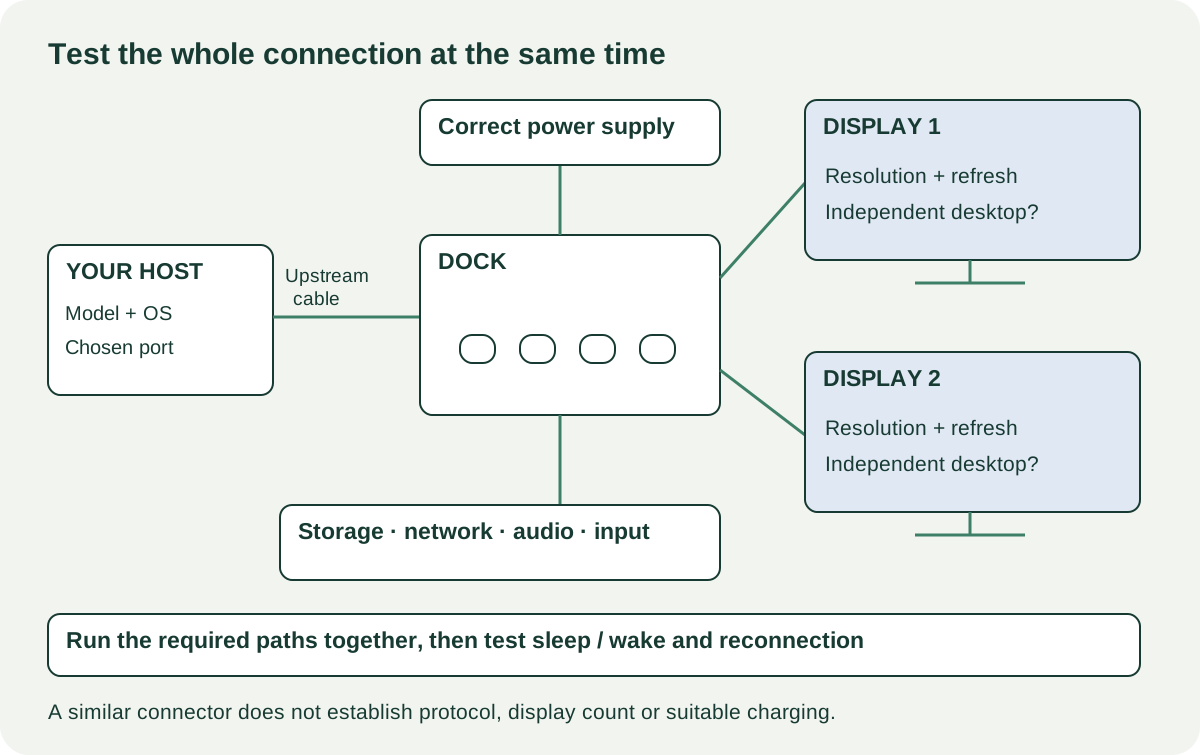
Start with a simple chain: computer, upstream cable, dock, displays and peripherals. Add the power supply feeding the dock. Write the exact model at every point you already own. For each display, record resolution, refresh rate and whether you need an extended desktop rather than a mirrored copy. Add Ethernet, external storage, audio and charging only where they matter to your work.
This prevents an expensive category mistake. A hub intended to add a few data ports is not necessarily a workstation dock with the video and power capabilities your laptop needs. A dock advertised for two monitors may depend on host capabilities or software that differs between operating systems. “Works with Mac and PC” does not settle the number of independent displays on your particular machine.
Ask the seller for the dock’s underside label, model revision, supplied power-adapter label and upstream cable. An ordinary charging cable is not automatically the cable specified for the dock’s full data and display operation. A replacement cable or proprietary power brick can erase the apparent saving, so identify them before negotiating.
Use the manual to turn marketing words into a connection matrix
The CalDigit TS4 manual, for example, lists host requirements, display arrangements, a supplied Thunderbolt cable and a separate power supply. It also describes host-dependent display limits. That is a useful model for research, not a promise that another dock behaves the same way. Locate the manual for the actual unit and compare it with your computer manufacturer’s display and port specifications.
| Link in the chain | Exact detail to record | Question to resolve |
|---|---|---|
| Host | Computer model, OS, chosen port | Which video/data protocol and display count does it support? |
| Upstream cable | Model, rating and length | Is it specified for this dock and desired operating mode? |
| Dock | Full model/revision, firmware where relevant | Which ports share resources or have host-dependent limits? |
| Display 1 and 2 | Input, resolution, refresh rate | Can both intended modes run together as extended displays? |
| Power | Adapter identity and published host output | Is the supported output suitable for the laptop’s workload? |
| Peripherals | Storage, network, audio | Will they work while video and power are active? |
If the dock relies on DisplayLink or another software route, check that provider’s current compatibility for the particular dock and your OS. Ask whether your workplace permits the required installation. Do not describe all USB-C docks as DisplayLink devices, or assume a driver-free video dock can acquire extra independent displays by installing unrelated software.
 Enlarge diagram
Bring your computer and test the simultaneous workload
The seller’s successful setup is evidence about their combination. Your own laptop, monitor cables and a familiar data device give you much better evidence about yours. If bringing both displays is impractical, agree exactly what will remain untested and decide whether the asking price and return terms justify that uncertainty.
Start with a normal cold connection using the specified power supply. Inspect the case for impact damage and sockets for looseness, debris or bent internal parts. Connect cables normally; do not rock them sideways to stress a questionable port. A damaged connector is not cleared because holding a cable at an angle restores the picture.
Connect both displays and select the intended modes in your operating system. Confirm that each is an independent extended desktop where required. Drag a window across them and play ordinary local media. Connect the keyboard, mouse, network and external storage you need. Copy an expendable test file while the displays remain active. Confirm audio input and output separately if either matters.
Watch the charging state while doing ordinary work, but do not infer the full power budget from a charging icon. Compare the documented dock output and laptop requirements first. Some buyers can accept using the original laptop charger alongside a dock; others are paying specifically for one-cable operation. Write down which outcome you accept before the test.
Try normal sleep and wake, reconnect the upstream cable once and observe whether all required devices return. An intermittent display can come from a cable, adapter, host setting or dock; the useful finding is the failed path. Change one known-good component at a time where practical. If the cause remains unresolved, do not diagnose it as a cheap cable simply because that is the least expensive possibility.
A matching connector can still produce the wrong desk
Imagine a buyer needs two independent displays, a USB audio device and laptop charging. The seller demonstrates two screens from a different computer. At the buyer’s test, one display works and the second mirrors it or remains unavailable. The dock may be operating exactly as documented for the buyer’s host; it is still the wrong purchase for that requirement.
The buyer has three concrete options: choose a verified compatible dock, accept a supported additional direct display connection, or change the intended display arrangement. The second option only works if the laptop has a suitable remaining port and the buyer is content with the extra cable. A lower price cannot create a feature that the host/dock combination does not support.
Now consider a separate hypothetical cost comparison. Dock A is $90, but its correct power supply costs $65 and its upstream cable $30, with $15 collection: $200. Dock B is $175 complete with $10 collection: $185. These are illustrative inputs. A compatible complete dock can cost less than a stripped unit even before you value the time spent locating parts.
Decide which faults are negotiable
A cosmetic scratch, missing rubber foot or absent verified replaceable cable can be a bounded compromise. Repeated disconnects, unexplained power resets and an unavailable required display mode are different. The first two need a diagnosis; the third needs a compatibility solution, not a hardware repair guess.
Keep a brief test record: host and OS, upstream cable, display modes used together, peripherals active, charging observation and sleep/wake result. Use the listing comparison tool to note the complete cost and unresolved functions for each candidate. It does not calculate compatibility for you.
Confirm that the tested power supply and cable are the ones included in the sale, especially where a seller has several similar docks. Pack the connectors without strain. Once home, follow the maker’s supported setup and firmware guidance for your model. The useful bargain is the complete connection you verified, not the largest port count in a product photo.
Sources
- 01CalDigit TS4 user manual