How do you test a used DJ controller before buying?
Quick answer
Identify the exact controller and verify current support for your computer and DJ software. Test both decks, every fader and button, headphone cueing and the outputs you will use. Separate hardware-enabled features from paid software licences. Lights turning on only prove that it receives power; they do not prove reliable audio or a transferable software package.
Start with the software you intend to use
Record the full model and revision, then check current operating-system and software support. Older controllers can remain physically sound while depending on drivers that do not suit your laptop. A USB connection or MIDI mapping is not the same as full audio, jog-wheel and performance-feature support.
Separate hardware access from paid licences. For example, Pioneer DJ’s DDJ-FLX4 information distinguishes included software use from premium tiers. Do not generalise that arrangement to every controller.
Use the exact manufacturer software-support page and the software provider’s requirements. Write down the version you plan to test before meeting, including whether it is free, hardware-enabled or separately paid.
 Enlarge diagram
Ask for a complete connection inventory
Request controller, power-supply and port photographs. Count USB cables, the correct power adapter if required, any breakout cables and the case or cover if advertised. A missing generic cable may be inexpensive; a missing proprietary adapter may not be.
Ask about spills, repairs, gig use and intermittent faults. Look for sticky controls, corrosion around sockets, bent USB connectors and screws suggesting prior service. Previous professional use is not automatically bad, but it makes a normal operating demonstration especially useful.
Agree on a laptop, legally usable test tracks, headphones and a suitable speaker or interface connection. If possible, use your own supported laptop configuration. Keep volume low while connecting and follow the controller’s manual.
Test controls methodically
- Confirm recognition. Check that the software sees the intended controller and audio device without repeated disconnects.
- Load both decks. Play a track on each separately. Test play, cue, jog response and tempo movement.
- Move faders slowly. Watch the software value across the full travel. Look for jumps, dead sections or an input that moves while untouched.
- Turn every knob. Test trim, EQ, filter and browse controls. Confirm both rotation and push functions where provided.
- Try pads and modes. Use supported functions you care about, including shifted controls. A button lighting up does not establish that it sends the right command.
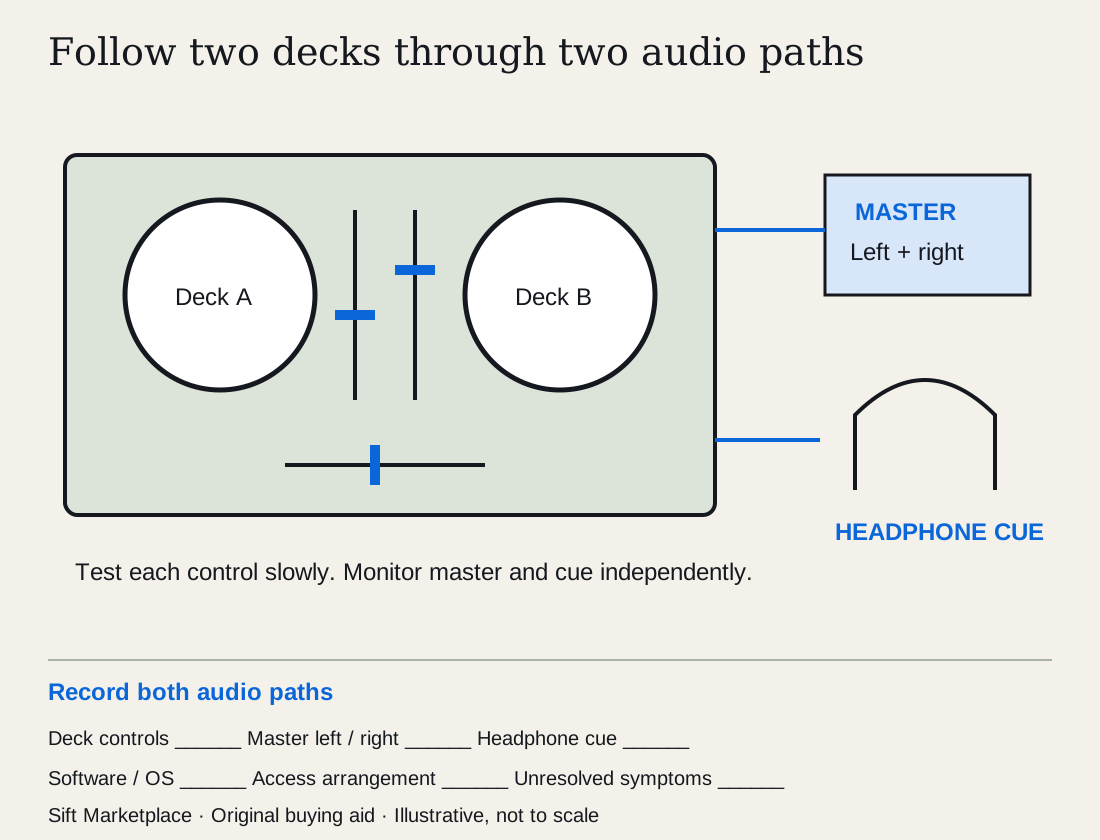
- Listen to both audio paths. Test left and right master channels, headphone cue selection, cue/master blend and headphone level.
For touch-sensitive jog wheels, check the behaviour described in the manual. Do not confuse an unfamiliar mode or software setting with a fault, but do not dismiss inconsistent response without resolving it.
Check the outputs your setup will actually use
A controller can play through the laptop’s speakers while its built-in audio interface is not being used at all. Confirm the selected audio device and output routing during the test.
If you need booth output, microphone input, external deck inputs or standalone mixer operation, demonstrate those specific functions. They are not implied by two working software decks. Bring suitable cables and a source where practical.
Run a short ordinary mix after the individual checks. Notice channel dropouts, crackling unrelated to expected gain settings or USB interruptions. A short session cannot establish all-day reliability, but it can reveal more than a power-on photograph.
| What you see | What still needs proving |
|---|---|
| LEDs illuminate | Computer communication and audio |
| Software moves with the jog wheel | Reliable touch detection and intended mode |
| Headphone sound works | Main output sockets and both channels |
| Seller has a premium software account | Your own licence or eligible hardware access |
| MIDI mapping exists | Full feature and audio support |
| One fader works | Every channel and crossfader input |
Price repairs and software honestly
Make a demonstration record for the software version, each deck, mixer controls, master output and headphone cue path. Write the computer/OS and connection used beside the result. AlphaTheta’s support portal separates software/OS compatibility from manuals and updates; check the exact model rather than assuming current support from a USB connection.
Consider a controller whose jogs and pads work while the seller listens through the laptop speakers. That shows some control input but leaves the controller’s own audio outputs unresolved. A headphone-only demonstration leaves the main output path unresolved. Bring or arrange the compatible listening equipment needed for your actual setup and observe both channels at sensible levels. Use the existing methodical control checks rather than an impressive performance as the test plan.
Keep symptoms precise. “Right master output intermittent with this known-good lead” is useful evidence for a service provider. “Probably just needs cleaning” is an unconfirmed diagnosis. Do not spray controls or open the unit at the viewing. A missing knob cap, bent control shaft and drifting electronic value can have very different repair costs.
For an invented comparison, Controller A costs $180, needs $100 confirmed service and $30 cables: $310. Controller B costs $270 with $30 cables: $300. Any required paid software belongs in both totals according to each model’s actual access arrangement. Do not count the seller’s account or collection of music as a transferable licence.
Use the listing comparison tool for separately observed input and audio functions, and the cost calculator for confirmed amounts. If service cannot quote an unresolved fault, keep the purchase a repair project rather than inventing a small allowance.
Ask: “Please confirm the exact model and software/OS version, licence arrangement, power/cables and whether we can hear both master channels and independent headphone cueing.” Search those supported models and compare complete setups close enough to demonstrate properly.
Questions people ask
Does a used controller include DJ software?
It depends on the model and software tier. Some hardware enables particular functions when connected, while premium features require your own licence or subscription. Check the manufacturer and software provider’s current documentation rather than paying for the seller’s account.
Can I test a DJ controller without speakers?
Headphones can test cueing and sometimes master monitoring, but they do not prove the main output sockets work. Arrange suitable speakers or an audio interface for the outputs you need, with levels kept low at connection.
Is a scratchy fader an easy repair?
It may need cleaning, replacement or further diagnosis, and construction differs by model. Do not assume spraying cleaner into it will fix it. Get a qualified service quote before treating an unreliable control as a small allowance.
Sources
- 01Pioneer DJ DDJ-FLX4 manuals and documentation
- 02Pioneer DJ DDJ-FLX4 software information
- 03Pioneer DJ DDJ-FLX4