Used document scanners: feed, duplex and a usable software path
Quick answer
Choose the scanner for your document types and computer, then run an agreed numbered sample batch through the intended workflow. Check feed reliability, page count, both sides, image quality and saved output separately. Confirm current drivers and software for the exact model and OS, and price the correct rollers, power supply and other consumables.
Match the feed mechanism to the documents
A sheet-fed duplex scanner can be useful for ordinary office paper, while a bound book, delicate original or oversized document may need a different supported method. List the paper sizes, thicknesses and condition you actually expect to scan. Check the exact manual for permitted originals and any carrier sheet or flatbed accessory needed. Do not feed a unique family document through an unfamiliar used machine to test its limits.
Decide whether you need automatic two-sided scanning, searchable PDFs, a network workflow, a particular file destination or only occasional images. A multifunction printer may already do the simple task; a dedicated scanner’s value lies in the workflow you can demonstrate. Keep scanning hardware, optical character recognition and cloud services as separate capabilities.
Ask for the full model number, supplied power adapter, cable, trays and optional accessories. Check whether the seller has reset any page or roller counters and whether service records explain the reset. A low counter is not independent proof of low lifetime use.
Verify a current route to your computer
Locate the manufacturer’s download and support entry for your exact model, operating system version and processor architecture. A scanner working on the seller’s old computer does not establish a supported installation on yours. Download availability, current support and a bundled software licence are different questions.
Ricoh’s Windows support table for discontinued ScanSnap models separates models, applications and OS conditions, including architecture restrictions. Its mobile application retirement notice shows why an old product page can describe a workflow that is no longer a current supported route. Check today’s model-specific path rather than valuing an old installer disc as continued support.
If the software requires an account or paid licence, establish whether you can obtain your own valid access. Do not accept the seller’s personal login or assume every originally bundled commercial application transfers with the scanner. If your employer controls software installation, settle that requirement before buying the hardware.
Prepare a sample batch you can audit
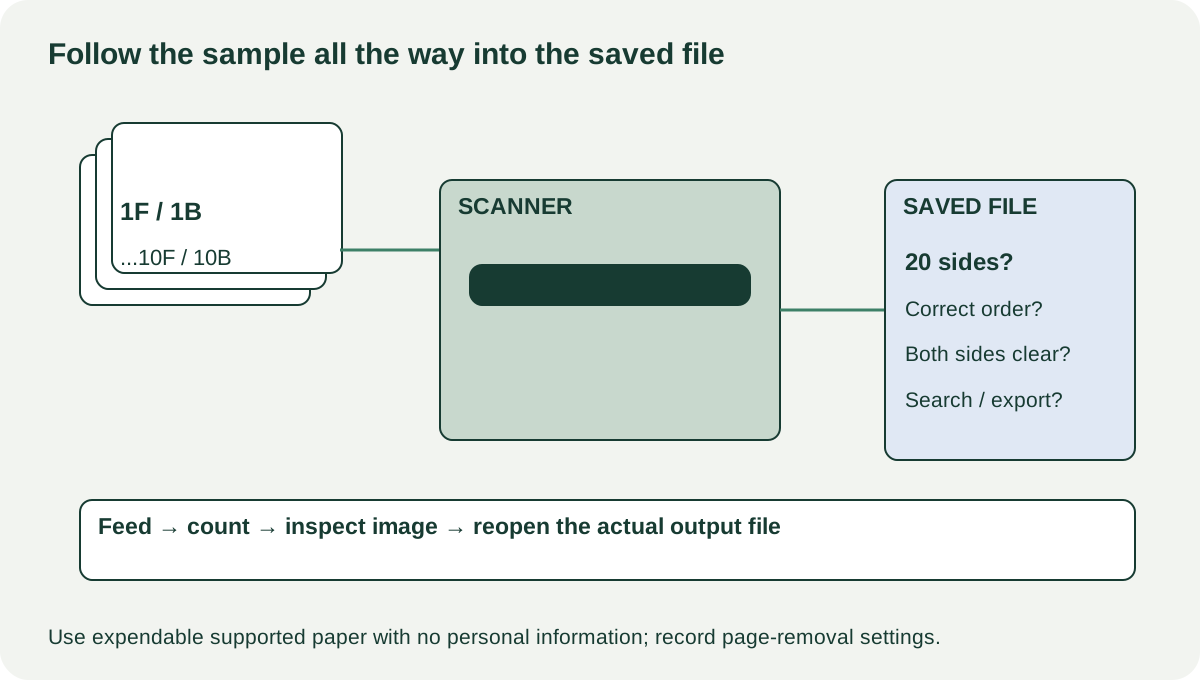
Use expendable pages with no personal information. Number both sides clearly and include ordinary text, a simple image and margins you can inspect. Add the paper types you actually need only when the manual permits them. Count the physical sheets and expected sides before loading.
A useful hypothetical batch is ten ordinary sheets, each printed on both sides and marked 1-front through 10-back. That gives twenty expected images if all sides are retained. If blank-page removal is enabled, account for that setting rather than accusing the feeder of losing a deliberately blank side. Record the scan profile so the result can be interpreted.
| Sample record | Fill in during the visit |
|---|---|
| Model and host | Scanner identity, computer OS and application |
| Input | Sheet count, paper type, numbered sides |
| Settings | Colour mode, resolution, duplex and page-removal options |
| Feed | Skips, double feeds, skew, jams or unusual marks |
| Output | Expected versus actual page count, order and both-side quality |
| File workflow | Save, reopen, search or export as required |
 Enlarge diagram
Watch the feed and inspect the saved file
Have the seller load the batch according to the manual. Observe whether sheets enter evenly and whether feeding requires repeated nudging. Do not keep forcing a jammed original through. Follow the approved jam-clearance method and stop if the mechanism or paper is being damaged.
Open the finished file, count pages and compare their numbering. Inspect the first and last pages, both sides, corners and margins. Look for recurring vertical lines, clipped edges, skew and missing content. Check the text at a useful zoom level rather than judging only a thumbnail preview.
For a searchable-PDF requirement, search for a known word in the saved document. A successful scan image does not prove optical character recognition ran or that the desired output format is available. If network saving is part of the purchase, use an agreed test destination without entering sensitive account credentials on the seller’s computer.
Epson’s model-family user guide covers supported originals, feeder problems, scanning workflows and user maintenance. The buying lesson is to interpret feed and image faults through the matching manual. A persistent line may call for approved cleaning or service; it is not automatically a harmless dirty roller. If the seller performs permitted cleaning, repeat the same batch and compare the result.
Price consumables without diagnosing every jam as wear
Look up the exact roller kit, cleaning materials, carrier sheets and power supply. Ask whether parts are available and whether installation is an ordinary documented user task or needs a service provider. A general “scanner roller” listing is not enough to cost the repair.
A hypothetical scanner costs $100, needs a confirmed $55 roller kit and $15 collection, totalling $170. A comparable scanner at $180 with a complete sample batch demonstrated may be preferable if the first seller’s jam has not actually been diagnosed. The $55 quote establishes the part’s price, not that the part will solve the fault.
If a clean, correctly loaded supported batch still double-feeds or loses pages, obtain a diagnosis or choose another machine for dependable document processing. A bargain that demands manually checking every page may defeat the reason you wanted a batch scanner.
Complete the purchase around the workflow
Buy when the exact software path is supported, the relevant document batch feeds correctly and the saved result meets your requirement. Negotiate known missing accessories or scheduled consumables using exact quotes. Treat unsupported software, unresolved feed failures or an unavailable required cloud route as a candidate-selection issue.
Before collection, have the seller remove saved destinations and accounts using the supported procedure. Verify that trays, adapter and cables from the demonstration are included. Pack the feeder and extensions as the manual directs so they cannot snap in transit. Keep the test profile and output notes in your listing comparison; they are more useful than an unsupported claim that the scanner is “office quality.”