How to buy a used printer that actually prints
Quick answer
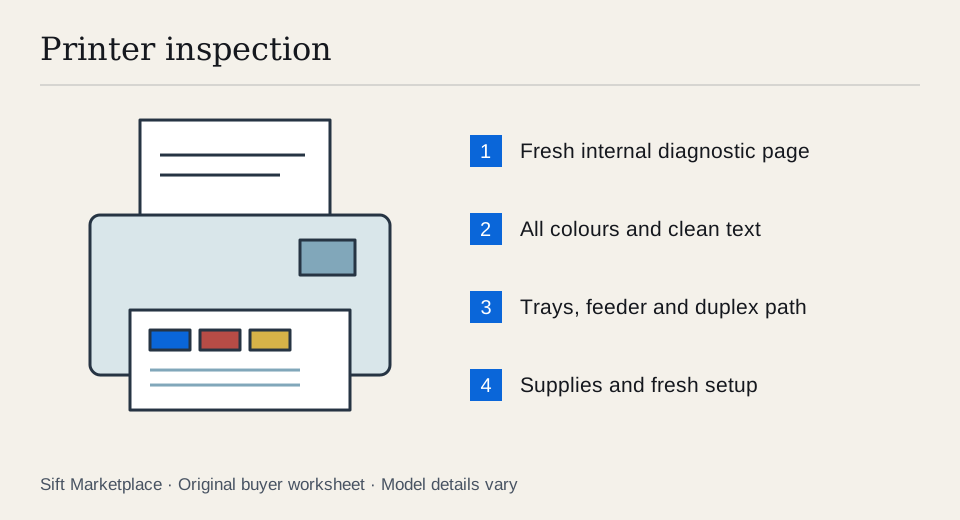
Ask the seller to print a fresh diagnostic page and a document during your visit, using installed supplies. Check colour output, paper feeding, duplex and scanning if needed, then verify drivers and consumable costs for the exact model. A printer that powers on but cannot print is an untested purchase, even if the seller says it only needs ink.
Start with the pages you actually need
Write down whether you need black text, colour documents, photographs, labels, duplex printing or scanning. Add the paper size and your connection preference. A cheap photo inkjet and an office laser solve different problems; comparing their sticker prices alone tells you little.
Get the full model number, including the suffix. Check the manufacturer’s current download page for your computer and the manual for the functions you need. “Wireless” does not establish compatibility with every network or mobile-printing method. If you intend to print by USB, confirm the connection and cable rather than assuming a Wi-Fi model includes one.
Ask when it last printed, which ink or toner is installed, whether supplies are subscription-linked and whether any warning remains on the display. Request a fresh test page before travelling, then repeat a shorter demonstration in person. A saved photograph of last year’s successful print is weak evidence about today’s condition.
Make a first-month job list: how many ordinary documents, whether you need colour, the largest paper size, scanning method and any speciality media. You do not need a precise forecast to see whether an intermittent photo project and a stack of double-sided text demand different machines. Verify the supported media and duty guidance for the exact model; a successful sheet of plain paper says nothing about an adhesive label stock the manual does not support.
Separate consumables into the parts this model actually uses. Record the ink/toner code, whether a drum or maintenance container is separate, the installed supply status, replacement availability and any subscription or account dependency. A cartridge-shaped item in the box may be empty, incompatible or not usable after the seller’s service ends. Do not value it until that is clear.
 Enlarge diagram
Test an inkjet with its own diagnostic pattern
HP’s print-quality guidance uses a diagnostic report to identify faded or missing colour blocks and white lines. Find the equivalent nozzle-check or print-quality procedure for the exact printer. It is more revealing than a dense black document that never uses the colour channels.
- Start the printer and read warnings. Note missing supplies, maintenance alerts and errors before the seller dismisses them.
- Print the internal diagnostic page. Check every colour and the alignment pattern under good light. Keep the fresh sheet with the seller’s agreement.
- Print a normal document. Include text, solid areas and a small image. Check for streaks, smearing, gaps and uneven colour.
- If cleaning is needed, follow the manual. Let the seller perform the appropriate cycle and print the diagnostic page again. Compare the two sheets directly.
- Stop at unresolved defects. Repeated promises about a future cartridge or cleaning cycle do not make the current output satisfactory.
Some inkjets have printheads integrated into cartridges; others use separate heads or ink tanks. Identify the actual design before pricing a repair. HP’s Officejet Pro 8500A instructions are an example where persistent diagnostic defects can require printhead replacement. That is model-specific evidence for checking the repair path, not a diagnosis for every printer with a streak.
Test a laser printer beyond the first sheet
Print the configuration or supplies-status report if the model offers one. Record page count and maintenance indications, then run several ordinary pages. Look for repeated marks, faded regions, loose toner and creased paper. The pattern can guide a technician, but do not assume every repeated mark needs only a cheap toner cartridge.
Check the cost and availability of the correct toner, drum and other user-replaceable maintenance items. Some models combine these; others separate them. The remaining percentage on a display is an estimate and may reflect a replacement or reset, so still inspect output.
Keep hands away from internal hot areas. Do not remove safety covers or reach inside a running machine. A seller who wants you to accept smoke, electrical smell or repeated shutdown as normal is offering a fault, not a bargain.
Follow the paper through the functions you need
Test each relevant tray with ordinary supported paper. Watch pickup, alignment and exit. If double-sided printing matters, run a duplex document; turning a page by hand is not an automatic-duplex demonstration.
For an all-in-one, scan a clean sheet with text and a coloured object or printed image. Compare a flatbed scan with the document feeder if both matter. A line appearing only in feeder scans differs from one appearing in every print, and it changes what you need to inspect next. Test multi-page feeding rather than one carefully positioned sheet.
| Function | Evidence to retain |
|---|---|
| Print engine | Fresh diagnostic and document samples |
| Paper feed | Tray tested, multiple pages and any jams |
| Duplex | Actual two-sided output |
| Scanner | Flatbed and feeder sample if required |
| Connection | Your intended USB, network or mobile method |
| Ownership setup | Seller account removed and fresh setup possible |
Use the samples to make the decision, not just to decorate a listing. A clean internal diagnostic page but failed computer printing points toward a connection or setup question that still needs resolution. A normal print with a streak only in feeder scans calls for a separate scanner-path check. Several trays working does not prove the duplexer works. Keep each required function’s result in its own row.
Ask the seller to demonstrate a short version of your real job: for example, a two-page duplex document plus a multi-page feeder scan. Buy when those outputs and fresh setup succeed. Negotiate a known consumable requirement only when the machine’s current output and replacement path support it. Pass when the seller cannot supply an essential diagnostic sample, repeated feeding faults remain, or the proposed cure is simply “buy all new ink and see”.
Work out what your first usable pages cost
Include the printer, usable consumables, required cables, transport and any known maintenance. A free printer needing several supplies is not automatically cheaper than a working complete one.
For illustration, a $40 printer requiring $95 in supplies and a $20 cable reaches $155 before collection. A $110 model with usable supplies may be the better buy if both pass the same output and compatibility tests. Those figures are invented inputs; use current manufacturer or supplier quotes in the cost calculator.
Before handover, let the seller remove personal documents, stored network settings and linked accounts using the appropriate reset procedure. Confirm any required new setup works. Keep the printer upright and follow the maker’s transport instructions, especially for tank models; do not improvise by draining or removing parts the manual says to leave fitted.
Sift, a free Facebook Marketplace filter and scam checker that also works on Kijiji, helps narrow model searches on Chrome on a computer. Use required and excluded words thoughtfully, then compare recorded prices against the complete cost of making the printer useful.
Questions people ask
Should I buy an inkjet that has been unused for years?
Only if it produces a satisfactory fresh diagnostic page and normal document, or you intentionally want a repair project. Long storage does not establish a fault, but a promise that new ink will fix missing colours is not a demonstrated repair.
Is a low page count proof that a used printer is healthy?
No. It is one piece of history. Storage, consumable condition, paper feeding, available parts and a fresh output test matter too. Read the count alongside the model and any maintenance messages.
Can I assume the installed subscription cartridges will keep working?
No. Identify whether supplies depend on a subscription or account and check the manufacturer’s current transfer and cancellation rules. Include independently usable replacement supplies in your cost if continued use is uncertain.