How to buy a used craft cutter that completes your project
Quick answer
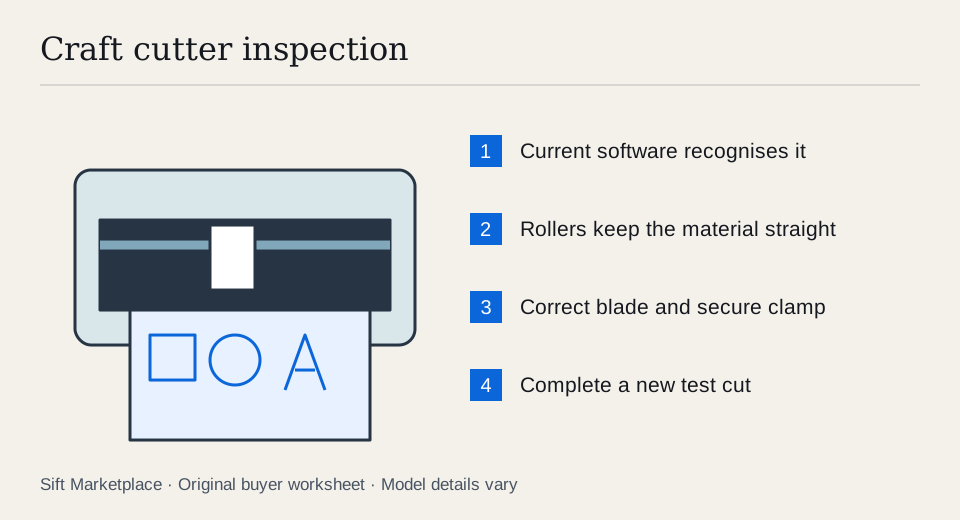
Identify the cutter model and confirm its current software works on your device. Inspect the rollers, tool clamp and included accessories, then send a fresh design and complete a cut on a suitable material. Test print-and-cut separately if needed. Do not count the seller’s account, subscription or design library as transferable parts of the hardware bundle.
Start with the material and finished size
Write down the work you want to make: vinyl lettering, iron-on designs, paper cards, fabric shapes or printed stickers. Add the maximum useful width and length. Check the cutter’s published material support and size limits for the exact workflow, including mat-based and matless operation where relevant.
A machine that accepts a wide roll may still have a smaller print-and-cut area. A cutter capable of one material with a specialised tool may not include that tool. Verify those details before treating a large accessories pile as a complete project kit.
Ask for the full model, a photograph of the tool carriage and all accessories laid out. Identify the power adapter, blade housing, mats, pens and connection cables individually. Marketing names and similar-looking cases can conceal important generation differences.
 Enlarge diagram
Use a project card with six entries: finished size, material, cutting method, tool/housing, mat or feed system, and software feature. Mark whether each component is already yours, included or still needs buying. This makes a specialist tool bundle comparable with an ordinary cutter that only appears cheaper.
Suppose your main job is printed sticker sheets. A machine may cut a large vinyl shape successfully while the required sticker layout exceeds its supported registration area. Another may support the layout but need a tool or software edition absent from the bundle. Resolve the actual design size and workflow first; raw roll width does not settle either question.
Prove the current software path first
Cricut’s system requirements specify supported platforms and note that requirements can change. Its Design Space FAQ lists supported machine families. Consult those current pages for the exact machine and computer; do not rely on an old tutorial or a seller’s unsupported laptop.
For another brand, perform the same check through its own software and compatibility documentation. Determine whether the file formats and features you need require a paid software edition. Keep that cost distinct from the machine itself.
Install the official software on your compatible device before meeting. Use a simple design you own or a freely usable basic shape so a missing subscription does not complicate the test. Enter your credentials privately. Do not accept the seller’s account or password as the way to keep the machine working.
Inspect material handling before inserting a blade
Look at the feed rollers for damage, displacement and obvious deterioration. Inspect the cutting strip, mat guides and tool clamp for deep damage or improvised repairs. A worn mat is a consumable; a carriage that cannot hold the tool securely is a different problem.
Ask the seller to show normal tool installation according to the manual. Avoid touching blade tips or reaching into a moving carriage. Check that the included housing and blade are approved for the machine and material. A dull blade can spoil a test, but “it only needs a blade” remains unproven until a correct setup produces an acceptable cut.
Complete a fresh cut from beginning to end
- Connect through the intended method. Test USB or Bluetooth as you plan to use it. Confirm the software recognises the actual model.
- Send a simple new design. Include a square, a circle and small lettering or another detail representative of your work. Do not use only a previously stored demonstration.
- Load an appropriate mat and material. Have the seller use the normal guides and pressure settings. Watch whether the material feeds straight.
- Observe the complete movement. Listen for grinding and watch for slipping rollers, repeated interruptions or a tool clamp that shifts.
- Unload normally. Inspect the material before removing it from the mat, then weed or separate the test shapes. Check corners, curved edges and whether cuts reach the intended depth consistently.
- Repeat one questionable area. Correct the material or consumable setup where the manual calls for it, then compare a second fresh result. Do not assume a reset resolves a recurring mechanical fault.
- Test a second essential function. If drawing, scoring or another tool is central to your projects, demonstrate it with the correct accessory.
For printed stickers, run the actual print-and-cut process with a suitable printed test and compatible printer. A vinyl cut does not test registration sensing. Check calibration and lighting guidance for that model and inspect alignment around the whole printed shape. The used-printer guide covers the separate printer purchase.
Inspect the result in two stages: material still on the mat, then the finished separated shapes. If the mat fed diagonally, corners or repeated shapes may shift even when the blade is sharp. If cuts are incomplete only in one region, repeat a supported design with a suitable mat and correct material settings before deciding a blade replacement solves it. If a corrected consumable setup produces consistent cuts, record what changed and which parts must accompany the machine.
For a small lettering job, the useful result is lettering you can weed and apply at the size you need. A large outline circle is easier but does not prove that detail. For print-and-cut, compare registration near several edges instead of judging only the centre. Buy on the successful project path; negotiate confirmed consumables; leave repeated feeding, carriage or setup failures unresolved until demonstrated otherwise.
Keep the bundle valuation honest
| Listing extra | What to verify |
|---|---|
| Many mats | Correct size, condition and adhesive suitability |
| Specialty blade | Compatible housing and machine support |
| Rolls of material | Type, width, condition and whether you will use them |
| Software access | Your own account and required edition |
| Subscription | Do not assume transfer or continued access |
| Paid designs | Lawful rights and transfer terms separately established |
| Printer included | Fresh print and registration test |
If setup produces an account, activation or device error, resolve it with the manufacturer and seller before purchase. Do not pay on a promise of future reactivation or a workaround. The machine should complete your test through the supported route.
For illustration, a $140 cutter needing a $35 housing, $20 mat and $30 power adapter reaches $225. A complete $200 bundle may cost less to use. These are invented comparison figures, not accessory quotes; check actual compatible parts in the cost calculator.
Keep the shortlist focused on usable models
Search the model name and generation, then inspect listings that omit accessories before excluding them automatically. Sift, a free Facebook Marketplace filter and scam checker that also works on Kijiji, helps narrow listing words on Chrome on a computer. Its recorded price history can help you follow candidates while arranging the cut. The useful bargain is a machine that completes your project with the software and accessories you actually own.
Questions people ask
Can I use an older Cricut with Design Space?
Check the exact model against Cricut’s supported-machine list. The current FAQ names Joy, Explore, Maker and Venture families. Do not assume an older cartridge-based machine uses the same workflow simply because it carries the Cricut name.
Is a power-on video enough to buy a used cutter?
No. It does not demonstrate connection, software access, material feeding or a complete cut. Ask for a fresh design sent to that actual machine, ideally using your compatible device and account.
Do I need the same blade for vinyl and fabric?
Tool and material support depend on the cutter model. Check the manufacturer’s material and tool guidance. A bundle containing many blades is valuable only if the housings and tools fit the machine and suit your projects.
Sources
- 01Cricut Design Space system requirements
- 02Cricut Design Space FAQ and compatible machines