How to test a used drawing tablet and its pen
Quick answer
Confirm the exact tablet model, compatible pen and current driver support for your computer. Then draw across the whole active area, test light-to-heavy strokes and try every needed button. For a pen display, check the panel and its video connection separately. A moving cursor does not prove pressure works, and a missing proprietary cable or pen can erase the saving.
First decide which kind of tablet is being sold
A pen tablet maps a drawing surface to a separate monitor. A pen display puts the picture under the pen but commonly still needs a computer. A standalone drawing computer runs its own software. Those are different purchases even when a seller calls all three a “drawing tablet.”
Ask for the model code from the label, the included pen and a photograph of all cables laid out. Find the manufacturer’s driver download for that exact code and check your operating system version. A seller’s old workstation running an old driver does not establish support on your current computer. Avoid downloading drivers from links supplied in a private message; use the manufacturer’s own support site.
For a display, write down the required video, USB-data and power connections. A cable may combine them at one end and split at the other. Verify any adapter needed by your laptop before the meeting, including whether its port actually carries video.
For a complete setup, write one chain: exact tablet model + exact pen + supported driver/OS + required cables/power + drawing application. Mark every link verified, missing or untested. An incompatible pen can make a good tablet appear dead; an unsupported operating system can leave a complete-looking bundle unusable for you.
Decide how the active area will map to your screen. Try your usual small strokes and broad movements rather than choosing solely by the tablet’s outside dimensions. For a pen display, account for desk depth, cable exit space and a drawing angle that does not force an awkward posture. A bargain that needs a different desk or an expensive articulated support has a different total cost.
 Enlarge diagram
Prepare a test you can repeat
Bring your own supported computer if practical, with the official driver and drawing application ready. Choose a simple brush whose size or opacity responds to pressure. Turn off heavy smoothing for the diagnostic strokes, then re-enable your normal settings for a short practical drawing test.
Wacom’s pressure troubleshooting separates application support, driver settings and pen defects. That distinction matters when buying: a pressure problem in one application is not proof the hardware is broken, but it also is not a reason to accept an untested pen. Ask the seller to demonstrate correct operation in both the driver diagnostic view and a drawing program.
Do not uninstall the seller’s working setup or reset their preferences without agreement. Testing on your own computer avoids many of those complications and gives you more useful compatibility evidence.
Draw across the whole surface
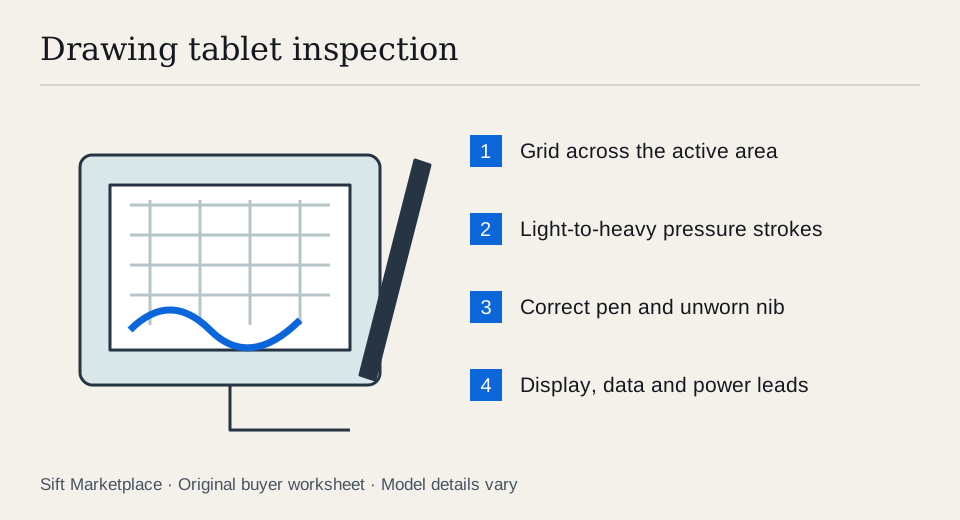
- Inspect the surface before drawing. Check for deep grooves, cracks, lifted edges and an uneven worn patch. Inspect the nib for a sharp or misshapen tip that could scratch the surface.
- Make horizontal and vertical lines. Cover the centre and edges, leaving a visible grid. Repeat a suspicious area in the opposite direction to see whether missing input occurs in the same place.
- Draw light-to-heavy strokes. Begin gently and increase pressure gradually. Look for a controllable range rather than a stroke that jumps immediately to full width.
- Lift and return the pen. Check that ink stops when the nib leaves the surface and that hover tracking behaves normally. A line continuing while hovering deserves investigation.
- Test the pen controls. Try each side switch, eraser if fitted, and tilt if your workflow needs it and the model supports it.
- Check tablet controls. Test buttons, wheel, touch and wireless connection where included. A feature you do not test should remain marked unknown in your notes.
- Draw something familiar. A few curves and small details reveal whether the active area and hand position suit you better than a specification sheet can.
The Cintiq 16 manual illustrates manufacturer diagnostics including pressure and pen input data. Use the equivalent instructions for your device. Do not assume a menu name or diagnostic screen is identical across every generation.
Inspect a pen display as a monitor as well
Display solid colours and read small text across the panel using the monitor checklist. Look for pixel faults, pressure marks and retained interface shapes. Change brightness and test the screen after it has run for a while.
Check alignment at the corners with your normal working posture. A small cursor offset may depend on calibration and viewing angle; a dead strip that never registers is a different issue. Ask the seller to use the normal calibration procedure before agreeing that an alignment problem is fixed.
Inspect the connector gently and verify that the picture does not disappear during ordinary cable movement. Do not bend the socket to reproduce a failure. Test the actual stand or adjustable support: it must hold your drawing angle without slipping under normal hand pressure.
When a test fails, preserve the distinction between hardware and setup. If pressure works in the driver’s diagnostic view but not in one brush, investigate that application’s supported configuration. If a strip of the active area fails repeatedly in both diagnostics and drawing, do not accept “calibration” as a complete explanation. If only the screen works, pen input and USB data are still untested; if only pen input works, the display path is still untested.
Ask: “Can we show this pen’s pressure in the official driver and a drawing app, draw across the whole surface, and verify all required cables are included?” Buy when the full chain works for your setup. Negotiate a known nib, stand or cable omission with a confirmed part. Pass when the essential pen is absent and cannot be tested, current driver support is unsuitable, or a persistent fault remains unresolved.
Price the working bundle, not the empty tablet
| Component | Confirmation needed |
|---|---|
| Pen | Supported part number and working pressure |
| Nibs and holder | Correct replacements still available |
| Cable assembly | Exact compatible connections, including power |
| Power adapter | Correct manufacturer specification and safe condition |
| Stand | Included, stable and suitable for your drawing position |
| Software | Do not assume the seller’s licences transfer |
An illustrative $120 tablet with a $65 replacement pen and $30 cable costs $215 before collection. A complete $190 bundle may be cheaper and is easier to test. These figures are comparison inputs, not current accessory prices. Record actual compatible-part quotes in the listing comparison tool.
Search by model code as well as the marketing name, since sellers often misidentify generations. Sift, a free Facebook Marketplace filter and scam checker that also works on Kijiji, supports focused listing-word filters on Chrome on a computer. Follow recorded asking prices, then make the offer only after the exact pen, tablet and computer work together.
Questions people ask
Will any Wacom pen work with a used Wacom tablet?
Do not assume compatibility across models or generations. Match the tablet’s model code and the pen’s part number against the manufacturer’s supported accessories before buying a replacement or accepting a bundled pen.
Why does the cursor work but pen pressure does not?
Wacom identifies application settings, driver settings, interference and pen faults as possible causes. Check pressure in the manufacturer’s diagnostics and then in a pressure-enabled brush. A cursor-only demonstration leaves the issue unresolved.
Does a pen display work without a computer?
Many pen displays need an external computer, video connection and power. Standalone pen computers are a different product type. Check the exact model rather than assuming a screen means it runs drawing software itself.
Sources
- 01Wacom Why is my pen pressure not working
- 02Wacom Cintiq 16 user manual