Buying a used video capture card
Quick answer
Verify the source-to-display and source-to-recording paths separately, then record and review a new file on a compatible host.
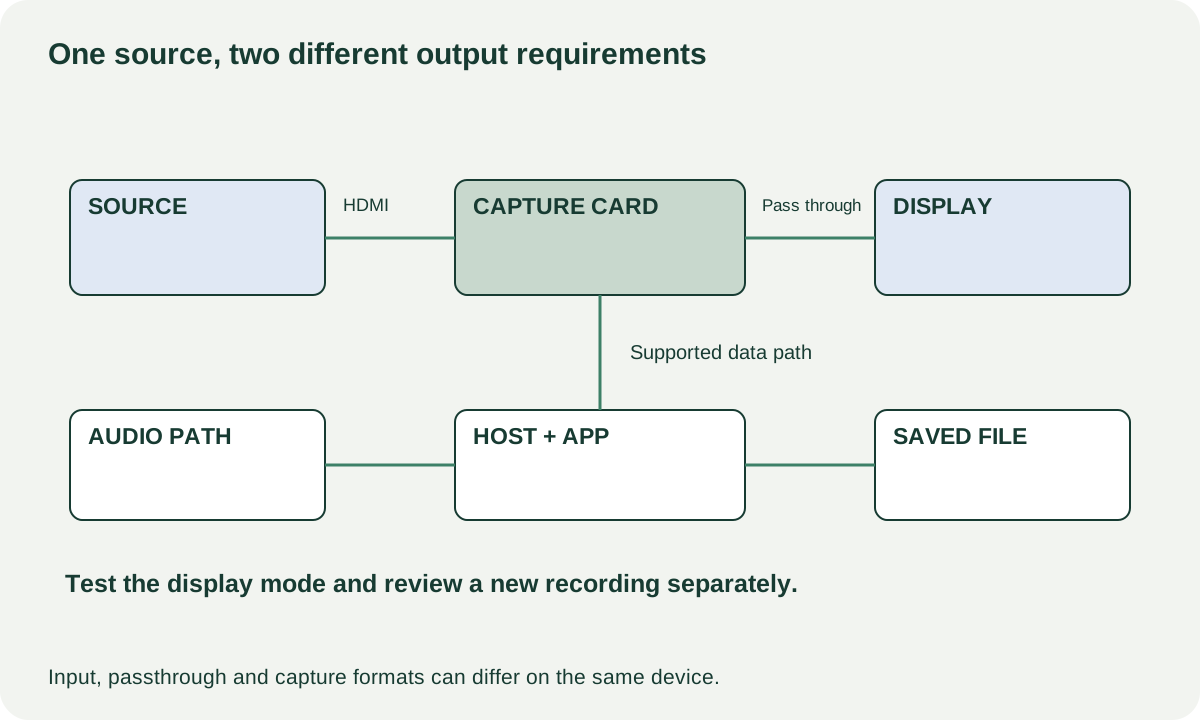
A capture card has at least two jobs that can produce different results: passing a signal to the screen you play on, and delivering a recording to a computer. A large resolution printed on the box may describe only one of those jobs. Buy for a complete signal path with your intended formats, not a single headline number.
Draw the setup before choosing the device
Write down the exact console or camera, its intended output mode, the display, the computer and operating system, the recording application and the required audio. Separate resolution, frame rate and HDR requirements for each path. If low-delay gameplay matters, specify how you will monitor the source rather than assuming the computer preview is suitable.
Elgato’s HD60 X format tables distinguish input, passthrough and capture capabilities. They illustrate why a model-specific table is more useful than “4K capture card” in a listing. Do not transfer that model’s specifications to a different revision or similarly named product.
| Path | Your required evidence |
|---|---|
| Source to HDMI input | Supported output mode and a stable source signal |
| Capture card to display | Intended passthrough resolution, refresh and HDR behaviour |
| Capture card to host | Required bus, port, suitable data cable and supported operating system |
| Host to recording file | Actual resolution, frame rate, audio and file playback |
| Microphone or party chat | A separately understood, supported audio route |
 Enlarge diagram
Check what is actually in the bundle
Identify external USB versus internal expansion-card models. An internal card requires a suitable computer slot, space and supported system; it is not interchangeable with an external device. For USB models, a physically matching socket does not establish bus capability. Check the full manufacturer requirements and include the correct data cable. A charging-only cable cannot substitute for a required data connection.
Ask for photographs of labels and all connectors. Inspect for damaged HDMI sockets, looseness, bent metal, damaged cables and signs of liquid. Ask about intermittent signal loss, disconnects after warming up and whether the seller changed cables or computers while troubleshooting. Include break-out cables and proprietary adapters in the inventory when the model uses them.
Do not pay extra for bundled software or accounts unless their transfer rights are clear and relevant. Your purchase should work with software you can lawfully install and use yourself.
Arrange a new recording, not a preview alone
Agree on the setup in advance so the seller can prepare compatible equipment. Connect a supported, lawful source using ordinary manufacturer instructions. Demonstrate the required passthrough mode on the display, then make a fresh recording. Include movement, changing scenes and sound so the result can reveal more than a static menu.
Stop recording and play the actual file. Check that the intended video and audio are present, the image has the expected dimensions, movement is reasonably consistent and speech or a visible sound cue is synchronised. A preview window proves less than a saved file. A recording on the seller’s powerful desktop still does not prove your laptop meets the host requirements.
Run long enough to see ordinary behaviour after initial connection. Repeated black frames, audio loss, USB disconnects or freezes are reasons to investigate, not automatic proof that the capture card alone is defective. The source, cable, host port, settings, software and storage can all be part of the path. Change one known variable at a time, or leave the result unresolved if the meetup cannot isolate it.
Keep protected media and audio limitations out of the bargain
Some source content is protected from capture. Elgato’s Xbox One setup guidance explains the distinction between supported gameplay capture and protected media behaviour. A device being unable to record a protected streaming application is not an invitation to bypass protection, nor a reliable defect test. Demonstrate an authorised source intended for capture.
Likewise, television sound, game audio, microphone monitoring and voice chat may take different routes. Write down which sound you need in the recording and test that exact route. “Audio works” is too vague if only game sound is present while your intended commentary is missing. Do not count an adapter as a solution until its role and compatibility are documented.
Calculate the complete working path
Consider a hypothetical $90 used external card, $25 correct USB cable, $20 HDMI cable and $15 travel: $150. A $140 complete, demonstrably compatible card with $10 travel also totals $150. If the first card additionally needs a host upgrade, it is no longer the cheaper way to record. These amounts are illustrative, not market valuations.
Buy when supported formats match your plan and a new recording demonstrates the required path. Negotiate a known cable omission with a verified replacement. Pass when your host or source is unsupported, your needed format exists only in passthrough, or repeat instability remains unexplained. The listing comparison tool can hold total costs and notes; put the tested source, host and recording mode in those notes so two devices are being compared on the same task.