Find and organise saved Facebook Marketplace items
Quick answer
Save a Marketplace listing with its Save or bookmark control, then return through Marketplace’s buying area or Facebook’s Saved area. Menu placement varies by device. Saving keeps a route back to the listing; it does not reserve the item, preserve a deleted ad or confirm the price. Keep a separate shortlist for the details that matter.
 Enlarge diagram
Where should you look for saved listings?
Start in the same Facebook account and profile you used when saving. In Marketplace, look for a Saved or bookmark-labelled area within the buying or profile controls available to you. If that route is absent, check Facebook’s main navigation for Saved. Treat these as places to look, not an identical click path on every account: app, mobile-browser and desktop menus can differ.
Meta’s Marketplace introduction documents saving items for later, but its historical screenshots do not establish today’s menu placement. Once you find a Save control in your current interface, try it with one known listing, leave the page and return to the saved area. That checks your route without adding dozens of items.
If a mobile browser does not expose the relevant control, try the Facebook app or desktop website. Avoid switching accounts repeatedly: a list saved on one account will not become another account’s list.
How do you make a shortlist useful?
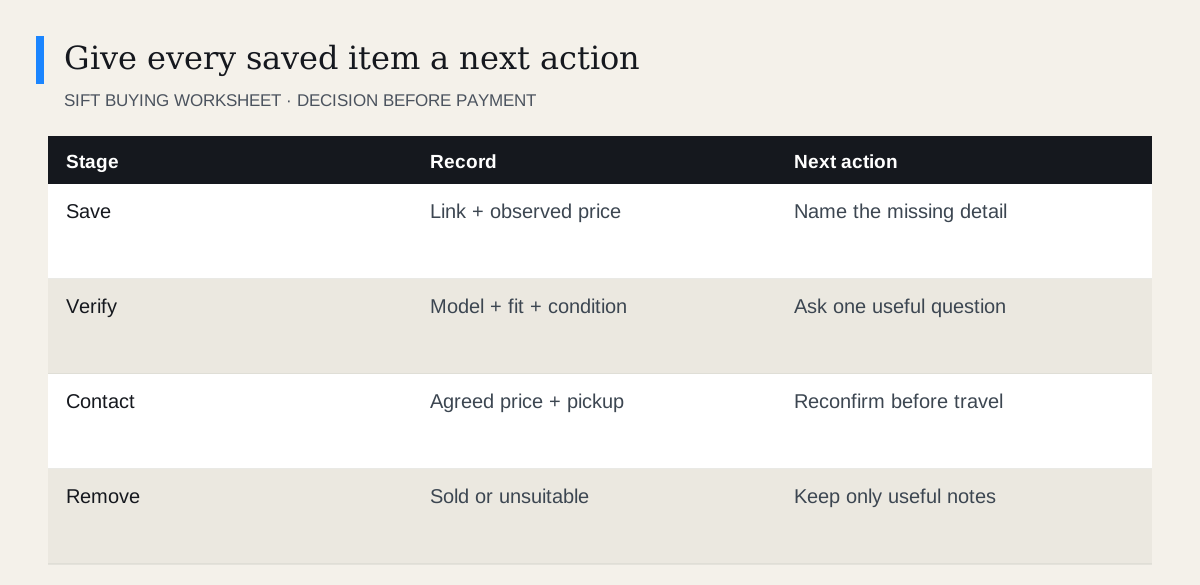
A wall of bookmarks is hard to compare because each seller describes condition differently. Give every promising listing a short record you control.
- Name the actual item. Record the model or dimensions, rather than just “nice desk.” Similar photographs can conceal different products.
- Record the observed asking price. Add the date. A saved link is not evidence that the seller offered that price permanently.
- Add your complete cost. Include collection, needed accessories and any work you already know is necessary.
- Name the unresolved question. “Does the monitor include its stand?” is useful. “Maybe” is not.
- Choose a next action. Contact, compare, inspect or remove. Keep a short active list that you can act on this week.
Use the listing comparison worksheet when several listings remain plausible. Keep observations separate from assumptions. “Seller says no damage” and “joint inspected and sound” are different kinds of evidence.
What information is worth keeping separately?
Save the listing link and item details needed to make your decision. You do not need to collect the seller’s personal history. For a purchase you are actively arranging, the conversation should contain the agreed item, included accessories, price and pickup plan.
| Listing | Confirmed | Still needed | Decision |
|---|---|---|---|
| Desk A | Width and asking price | Depth, leg removal | Ask for measurements |
| Desk B | Fits room and vehicle | Underside photo | Request photo |
| Desk C | Wrong height | Nothing | Remove |
These are illustrative examples. A lower asking price does not make Desk A the winner if transport and missing information make it impractical. You can give each candidate a maximum total budget before negotiating; this keeps the seller’s asking price from becoming your only reference point.
What if your saved list looks empty?
Check your account first, then refresh and try another supported surface. Look at whether every saved item is missing or just one. An empty list everywhere suggests an account or platform issue; one dead link is more likely specific to that listing.
For an individual missing item, search the exact title or model and check the existing seller conversation. If you find a similar replacement listing, confirm it is the same item with the same seller. Do not assume a relisted ad inherits the old price, promise or pickup slot.
Follow the unavailable listing decision guide if the link no longer opens. Repeatedly saving and unsaving will not restore a deleted listing.
When should you remove an item?
Remove a listing when it fails a requirement, becomes unavailable or has been replaced by a better confirmed option. If you are speaking with a seller, send a brief cancellation when you stop pursuing it. Removing a bookmark does not communicate your decision.
Keep one backup until your chosen purchase is inspected and completed. Do not book conflicting firm pickups for both. Before setting out, reopen the chosen listing and reconfirm the arrangement. A saved thumbnail can remain persuasive long after the practical deal has changed.
For a shared household purchase, send the decision-maker a concise comparison with measurements and the unresolved question. A link alone makes them repeat your research. Get their approval before making a firm offer, especially if the item will occupy their room or need their vehicle.
Questions people ask
Does saving a listing reserve it?
No. Ask the seller directly about availability and agree any pickup arrangement in the conversation.
Why is a saved Marketplace item unavailable?
The listing may have been sold, deleted, removed or become inaccessible to your account. The unavailable message alone does not establish which happened.
Is saving a listing the same as saving a search?
No. A saved listing points to one item. A saved search or search alert helps you return to a query or discover new listings.