How to buy a used audio interface for your computer
Quick answer
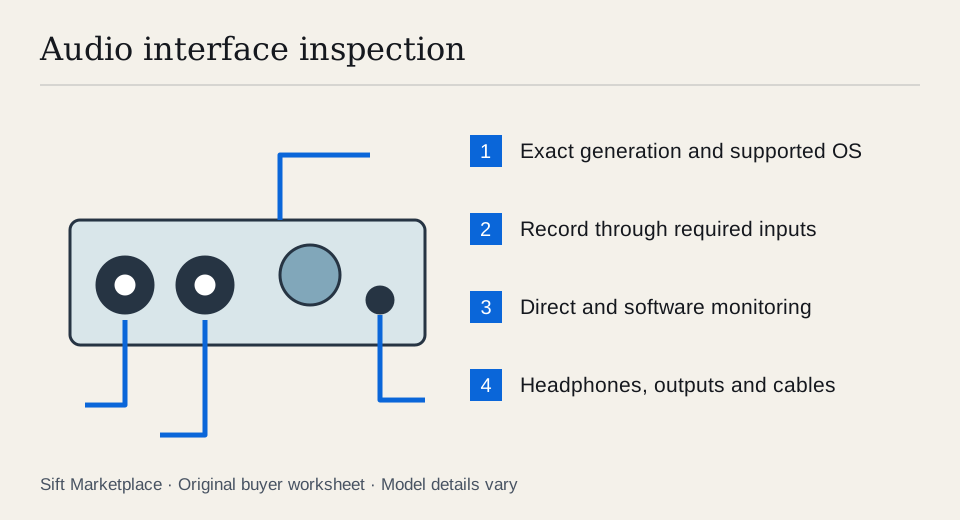
Match the exact interface generation to your computer, operating system and connection type before meeting. Record through each required input, listen through headphones and outputs, and test the monitoring route you need. Check the correct power supply and cables. A device lighting up or appearing in a system menu does not prove its audio paths and control software work.
Define the recording job before counting sockets
List how many microphones, instruments and stereo sources you need at the same time. Add headphone outputs, monitor speakers and any digital connections. A front panel with two combination sockets does not tell you how every input mode works or whether two people can have separate headphone mixes.
Get the full model and generation from the device, not the listing title alone. Similar names can span USB, FireWire and Thunderbolt products with different drivers and control applications. A USB-C shaped connector is not a complete description of the underlying connection.
Check the manufacturer’s compatibility information against your actual computer and operating system version. Focusrite’s compatibility resources and macOS product table distinguish products and generations. Use the current entry for the exact device rather than assuming a newer model’s support applies to an older one.
Turn a recording idea into simultaneous channels. Recording one vocal and one guitar differs from recording a stereo keyboard plus a vocal: the latter needs three suitable input channels at once. A stereo source normally occupies two channels. Write which source reaches which input and which listeners need which outputs before treating “two inputs” or “four outputs” as sufficient.
Also decide whether performers need different headphone mixes. Two headphone sockets can share one mix; a large socket count does not establish independent routing. Check the manual and control software for the exact arrangement, then demonstrate it. If the interface fits only after adding a digital preamp, include that preamp, its format, clocking and cables in the planned system.
 Enlarge diagram
Bring a small known-good signal chain
Bring your supported laptop, headphones, the appropriate data cable and one source you know works. A dynamic microphone and cable or an instrument can cover basic input tests. If you require phantom-powered microphones, arrange a compatible microphone and follow its connection guidance. Start with output levels down and avoid hot-plugging equipment with phantom power active.
Install the official driver and control application in advance where required. Set up a simple recording session with one track per input. Avoid making the purchase depend on an unfamiliar plug-in, large session or borrowed software licence that adds unrelated variables.
Ask the seller whether the interface has been repaired, used in a rack, powered from a non-original supply or exposed to a spill. Inspect the jacks, knobs, power connector and casing. Bent sockets, intermittent controls and unsafe adapter wiring deserve more attention than cosmetic rack scratches.
Record, then listen to the recording
- Connect and confirm recognition. Check the official control software where applicable, not only the operating system’s device list.
- Test the first input at moderate gain. Record speech or an instrument without clipping. Listen for unwanted crackle, intermittent signal and an obviously distorted recording.
- Move the same source to the other inputs. Keep the source and cable consistent so the comparison isolates each channel. Select the correct microphone, line or instrument mode.
- Turn each control normally. Check gain, output level and buttons. Do not force knobs or pull sideways on plugs to provoke a fault.
- Play back the recorded files. Listen through both headphone channels and, where practical, the main outputs. A meter moving is not enough.
- Test monitoring both ways. Try hardware direct monitoring and the software monitoring route you intend to use. Confirm routing makes sense and can be changed through the supported controls.
- Run a short practical session. Record and play back at your intended sample rate and sensible buffer settings. Check for repeatable disconnects or dropouts, while recognising computer configuration can also cause them.
If the unit uses an external power supply, test with that supply. A bus-powered demonstration may not cover every intended function on a model that requires additional power in some arrangements. Check the manual before substituting an adapter.
Keep direct monitoring and recorded playback as separate results. If speech reaches the headphones directly but the saved file is silent, the analogue input and monitor path have shown something useful while the computer path is still unresolved. If the saved file is clean but a headphone side cuts out, test a known-good headphone and connector before assigning blame. Change one variable at a time and keep levels moderate.
For a practical latency check, use the software instrument or recording session you actually need, with its normal supported settings. A seller’s empty session at a very small buffer does not prove your full project will run that way. Record the computer, driver version, sample rate, buffer and session scope alongside any dropouts. If stable operation requires a compromise that defeats your use, a technically working interface may still be the wrong purchase.
Give specialised ports a separate decision
If you need ADAT, S/PDIF, MIDI or word clock, identify the required format and bring appropriate equipment or arrange a demonstration. A cable fitting an optical socket does not prove that the device supports your intended channel count or sample-rate arrangement.
Mark untested specialised functions explicitly. If they are essential, postpone the purchase until they can be checked. If they are irrelevant to your work, do not pay a premium merely because the rear panel has many connectors.
For an interface that can operate without a computer, verify how its routing is configured and retained. Standalone operation may depend on a control application you cannot run. A seller’s working saved setup is not proof you can reconfigure it for your needs later.
| Item | Write down before collecting |
|---|---|
| Hardware | Exact model and generation |
| Computer | Model, processor platform and operating-system version |
| Connection | Protocol, cable and any adapter chain |
| Software | Supported driver and control application |
| Inputs | Number and type needed simultaneously |
| Monitoring | Headphone mixes and speaker outputs required |
| Extra features | Digital ports or standalone mode actually tested |
Value the hardware and transferable extras separately
Ask the seller to remove any device association required by the manufacturer, but do not assume registration is either always required or always transferable. Check the specific maker’s process. Plug-ins, recording software and subscription bundles have their own terms; the seller’s login is not an acceptable substitute for your own licensed access.
An illustrative $100 interface requiring a $45 power adapter and $60 connection adapter totals $205, with compatibility still needing proof. A $180 interface that connects directly and passes your tests may be the better buy. These are example costs, not quotes or a promise that an adapter will work. Use the comparison tool to record your verified combination.
Sift, a free Facebook Marketplace filter and scam checker that also works on Kijiji, helps narrow local searches on Chrome on a computer. Require exact generation terms where useful, then follow recorded asking prices while checking the connection and recording workflow that matters to you.
Questions people ask
Will an old Thunderbolt or FireWire interface work with an adapter?
An adapter alone does not establish compatibility. Verify the exact interface, driver, operating system, computer hardware and adapter chain with the manufacturer, then test that combination before purchase.
Do bundled plug-in licences transfer with a used interface?
Do not assume so. Check each licence’s transfer terms separately. Value the hardware without the seller’s software unless a permitted transfer has been established and completed.
Is direct monitoring the same as listening through recording software?
No. A hardware monitoring path can work even if the computer recording path has a problem. Test both the direct path and a recorded file in the software you intend to use.
Sources
- 01Focusrite Operating-system compatibility resources
- 02Focusrite macOS compatibility by product